Apply for Leave
Open Leave & Attendance > Apply Leave Request. On a small screen, use More > Leave & Attendance, unless the action is pinned to the bottom bar.
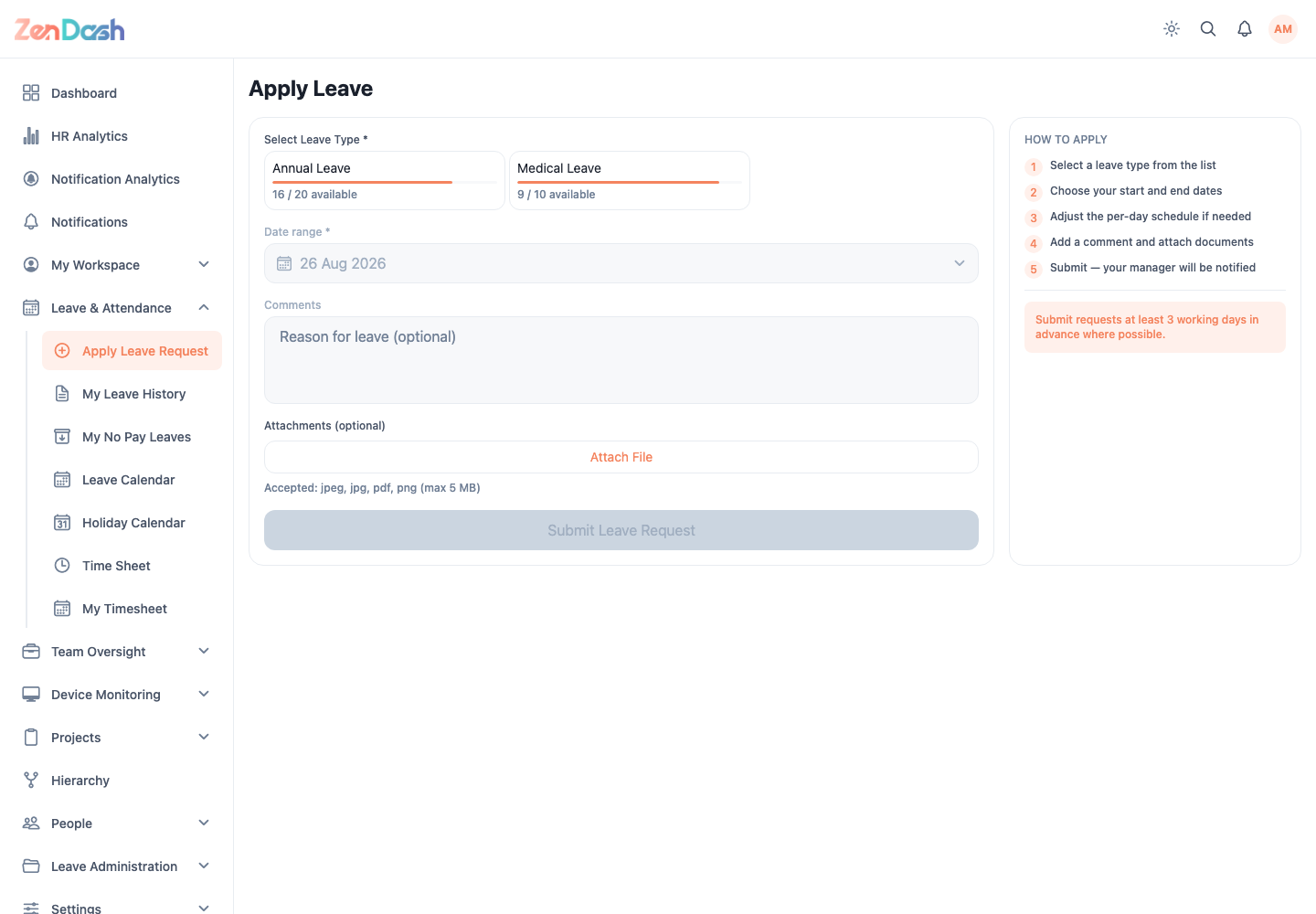
Submit a request
- Select an available leave type. The balance strip shows the quota available to you.
- Choose the start and end dates.
- Adjust each date to Whole Day, First Half, Second Half, or the available non-working-day option.
- Enter a comment.
- Attach supporting documents when needed.
- Review the requested day count and select Submit.
Date rules and available leave types come from your employee category, quota, and company policy. For annual quotas, the selectable range is limited by the remaining balance. A submitted request starts as Pending and notifies its approvers.
Record time worked for lieu leave
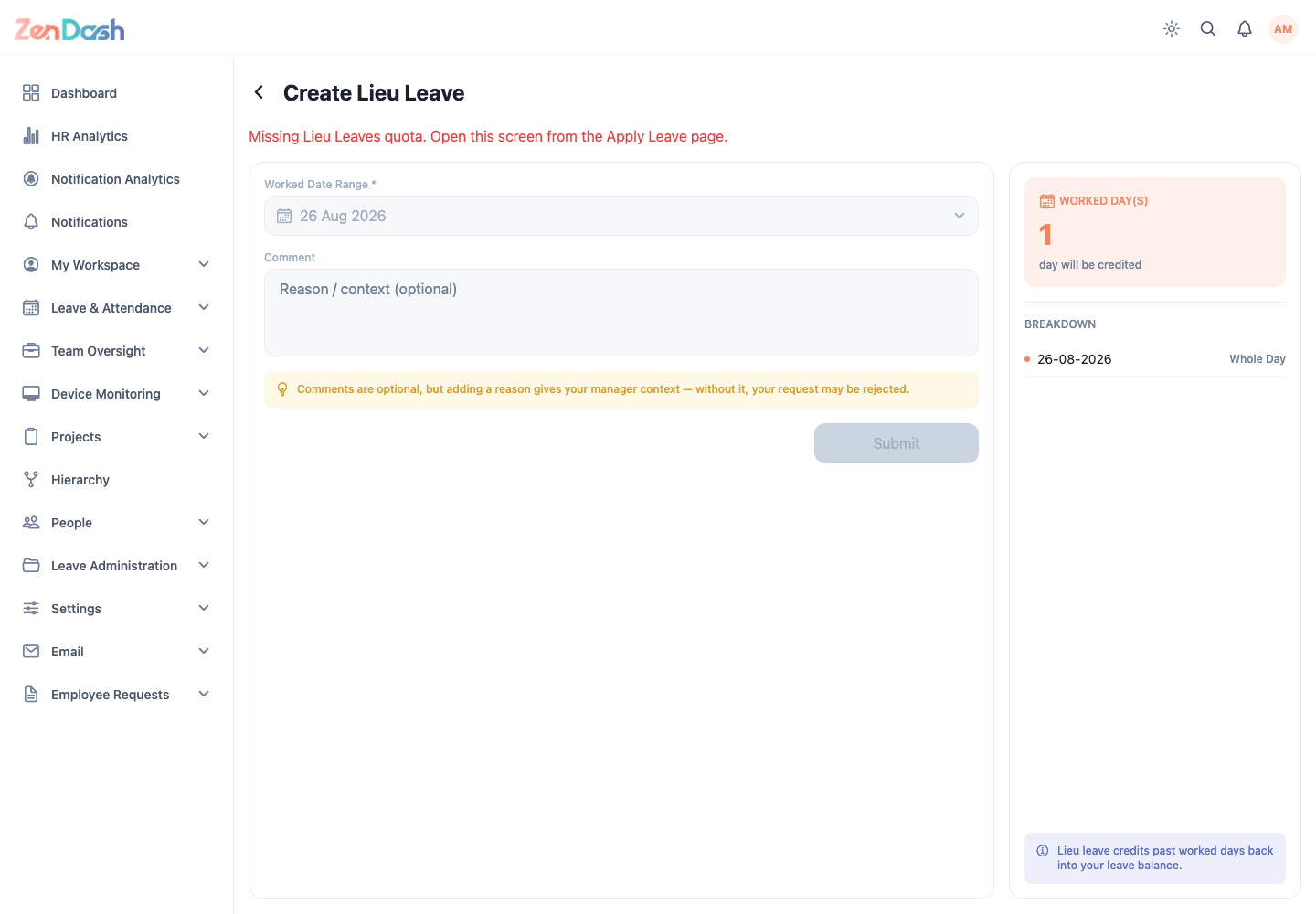
When you have a compatible lieu quota and permission, the apply screen offers the compensatory entry action. It opens Create Lieu Leave.
- Select the past Worked Date Range.
- Enter an optional Comment.
- Review the number of credited worked days.
- Select Submit.
tip
Add enough context for the approver, even when the comment is optional. Attachments should contain only information approved for your HR system.